Weapon profiles
Keep different aim and trigger settings for a specific weapon or weapon group.
SWINGAPP / VERSION 5
A closer look at the controls and visuals in SwingApp v5, shown with actual screenshots from a CS2 match.
Explore features ↘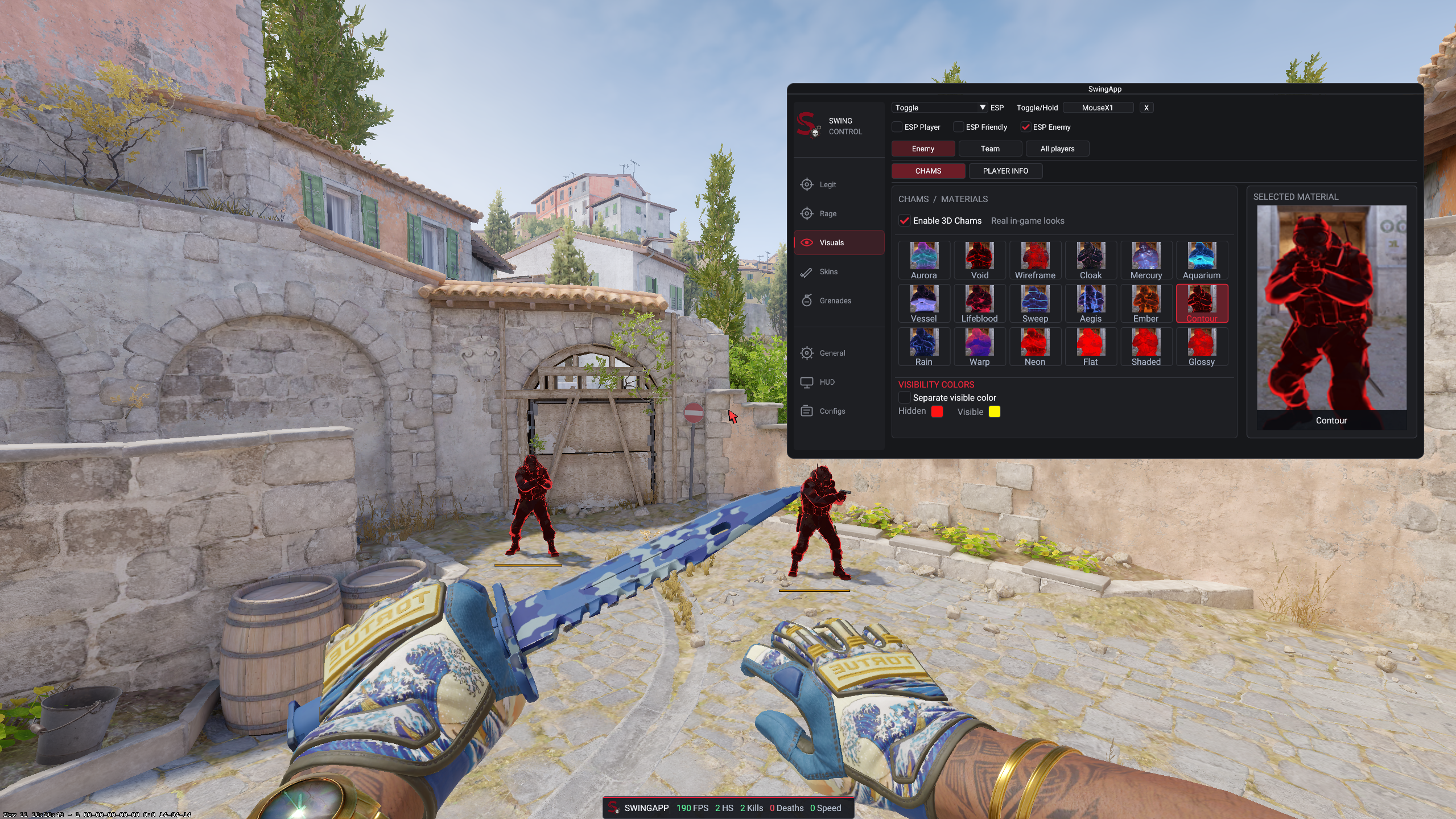
01 / COMBAT
Legit, Rage and Trigger Bot have separate controls. Set a profile for a weapon or group, then choose how the target is selected and when a shot is taken.
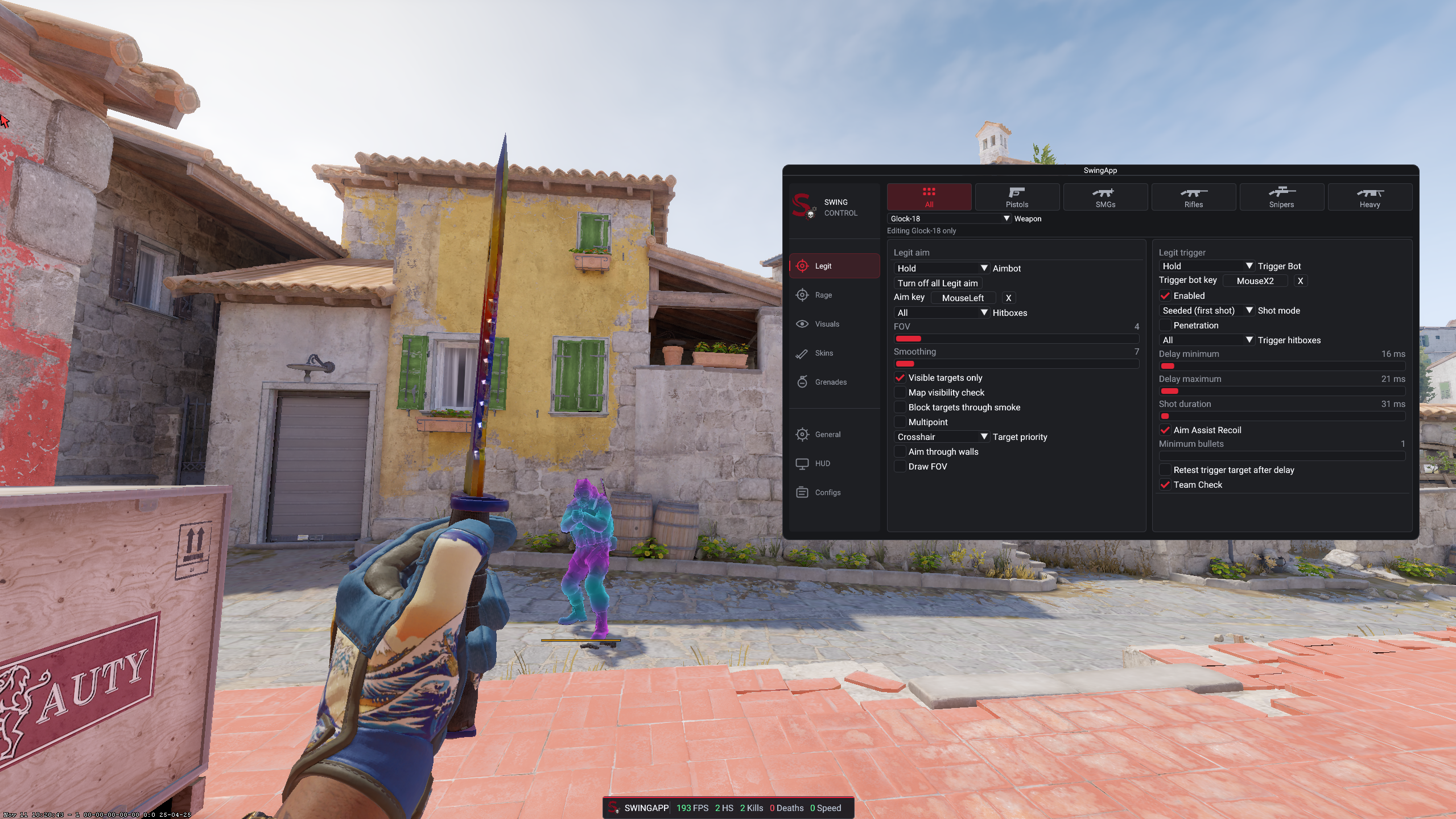
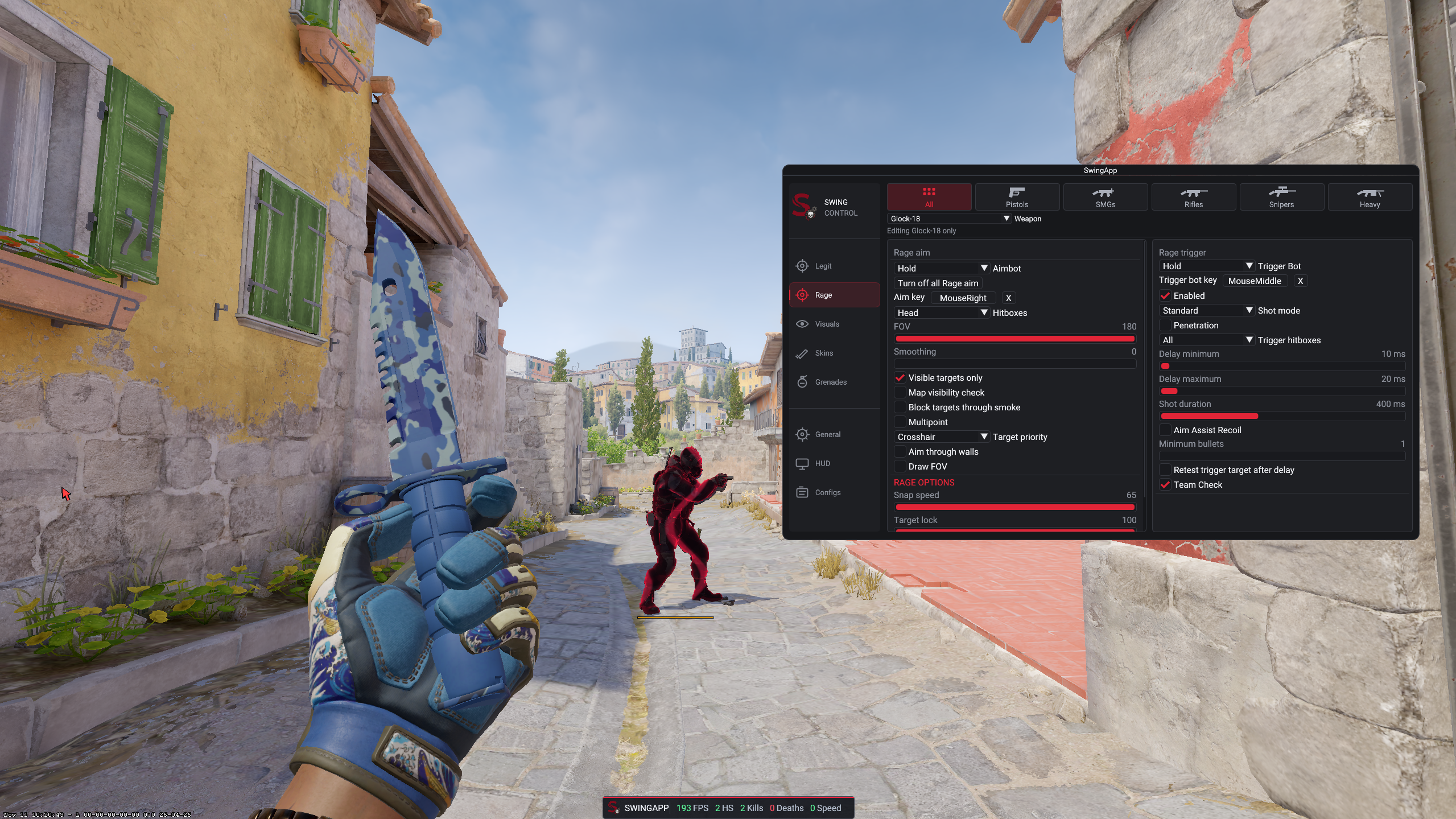
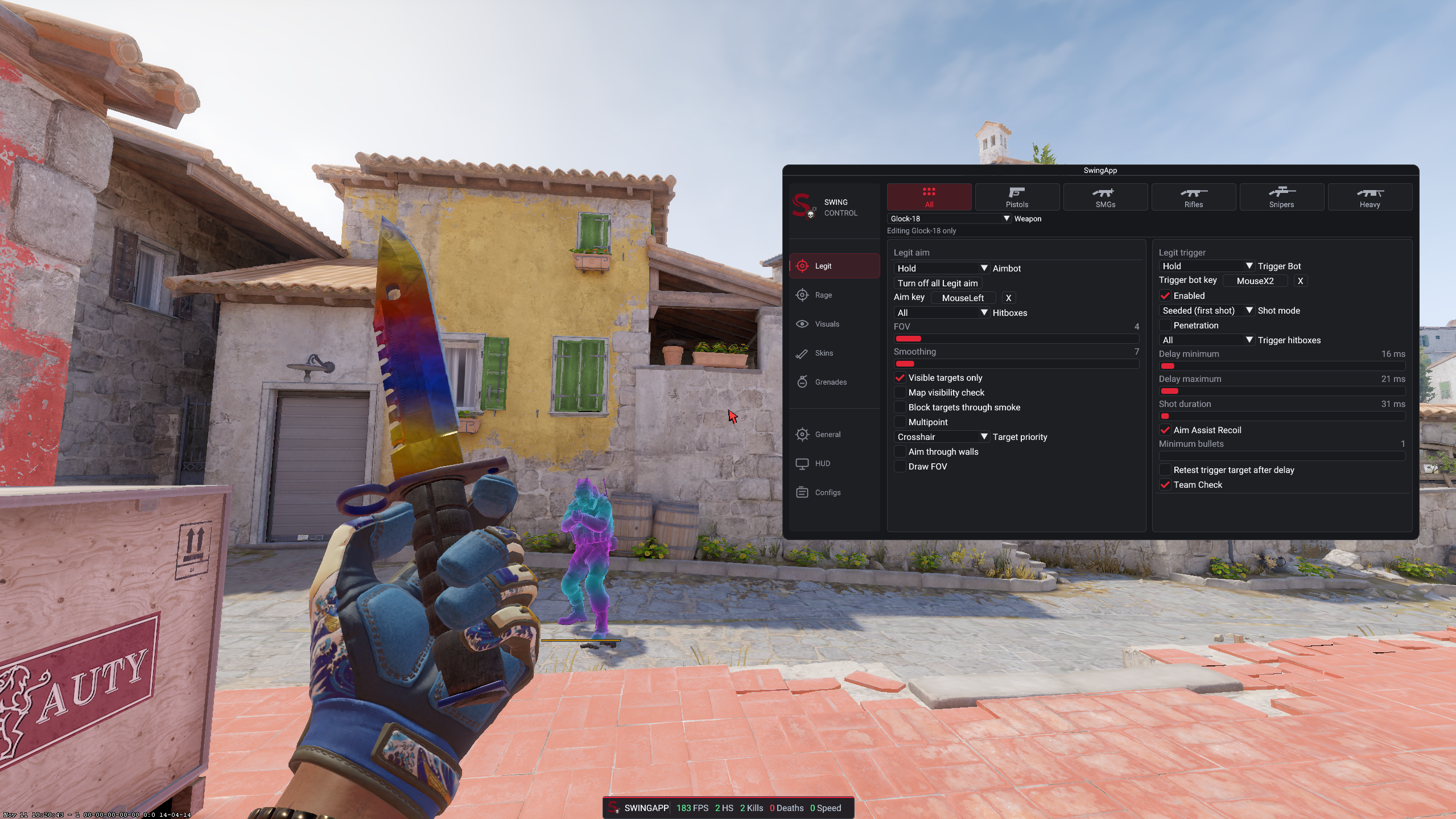
Keep different aim and trigger settings for a specific weapon or weapon group.
Adjust the aim key, target area, FOV and smoothing for a more controlled assist.
Use a separate aim profile with its own speed and target-lock controls.
Limit target selection using visible-target, map-visibility and smoke options.
Try alternative points in the chosen hitbox and choose which target takes priority.
Set a minimum damage value for the optional aim-through-walls setting.
Fire when the selected conditions are met, with configurable hitboxes and shot timing.
Choose Standard or Seeded first-shot mode, with optional recoil assist and target retest.
02 / VISUALS
Choose what appears around players and objects. The screenshots show the Chams gallery, the player-information page and the result in game.
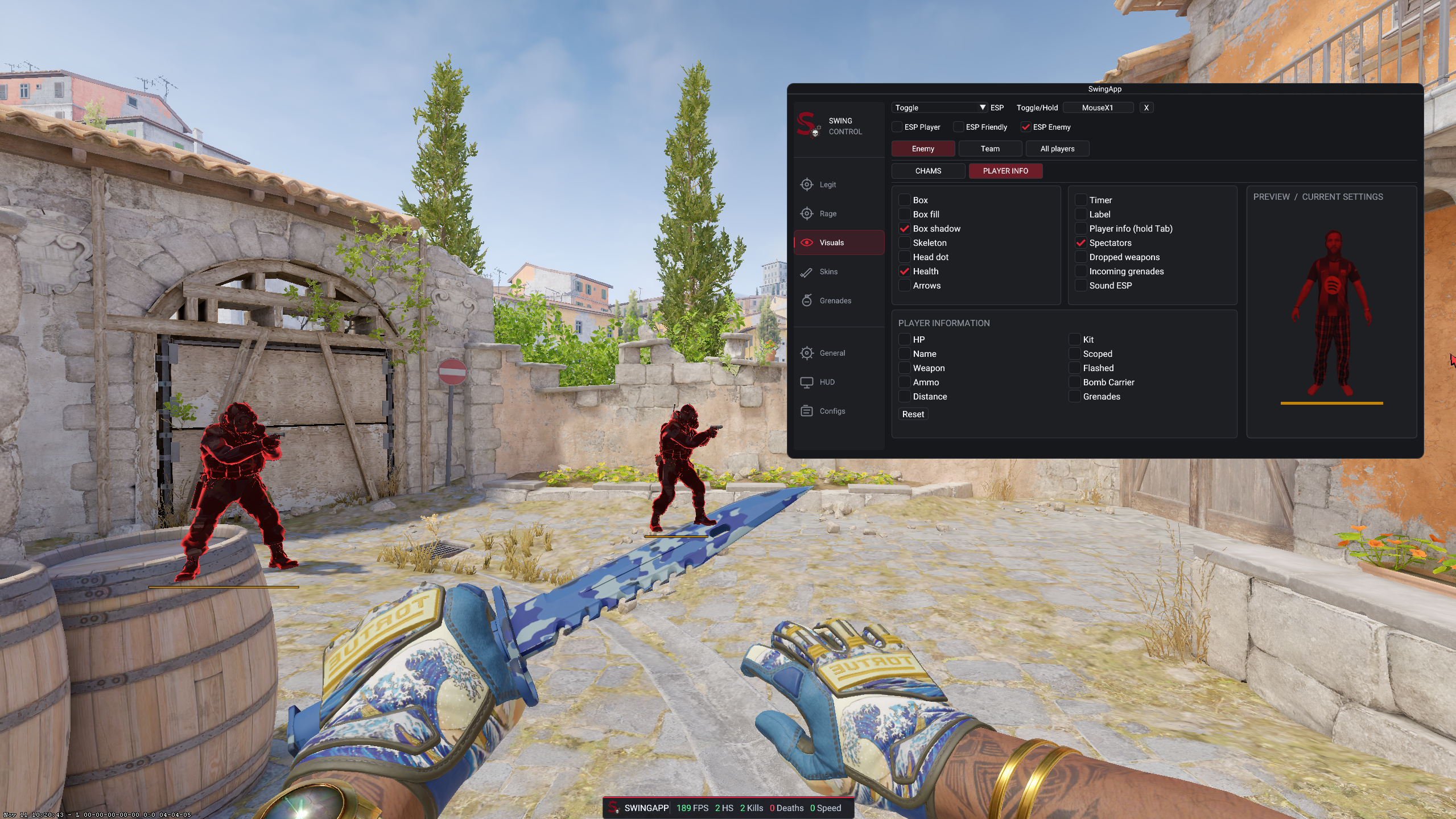
Choose a material style from the gallery and preview its look in the menu.
Use separate colors for visible and hidden portions of a player model.
Show a box, box fill or shadow, skeleton, head dot, health and off-screen arrows.
Add name, weapon, ammo, distance and status indicators such as scope, flash, kit or bomb carrier.
Show dropped weapons, incoming grenades and short-lived sound-position markers.
Keep timers and spectator information visible in the overlay when enabled.
03 / SKINS
Browse the item catalog, search for a model or finish and keep your selections together. These in-game captures show a selected knife finish and the catalog interface.
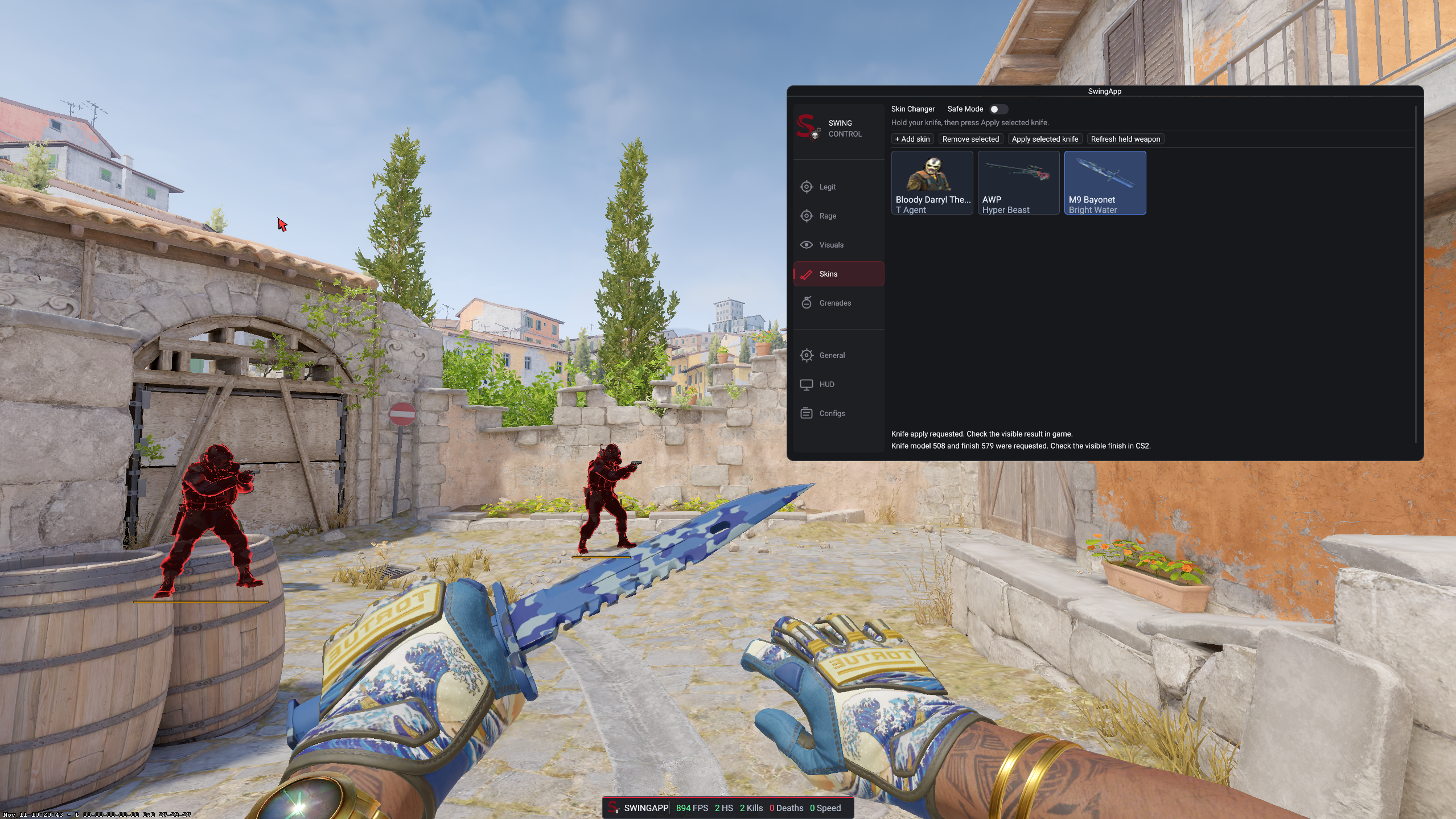
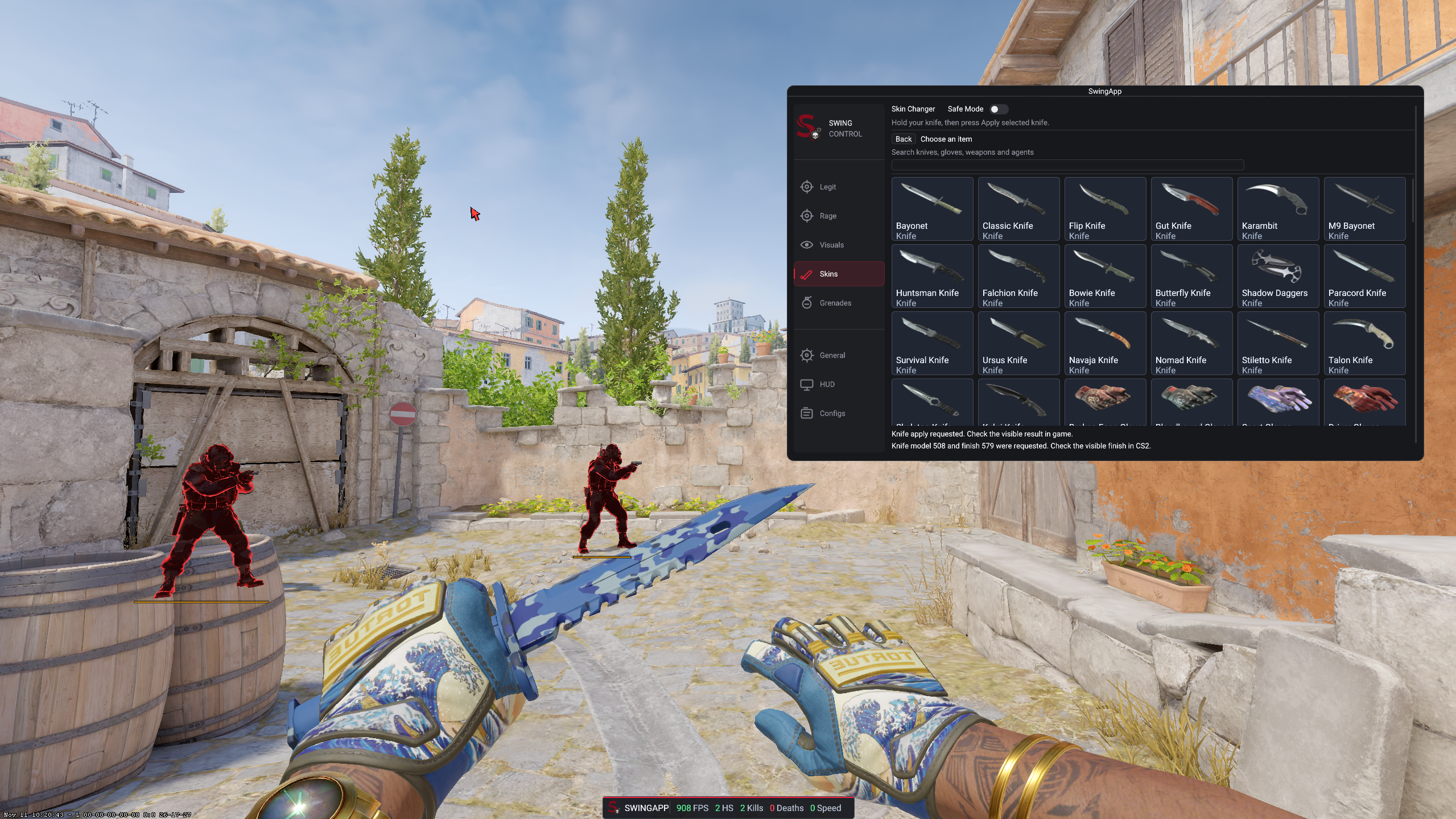
Browse knives, gloves, weapons and agents from one search screen.
Keep chosen items visible together in the Skin Changer menu.
Apply the selected knife while holding it, or request a refresh for the held weapon.
Pause skin application with a dedicated switch.
04 / GRENADES
Preview a throw, follow a saved lineup on the map and adjust the on-screen guides. The in-game image shows a saved smoke position.
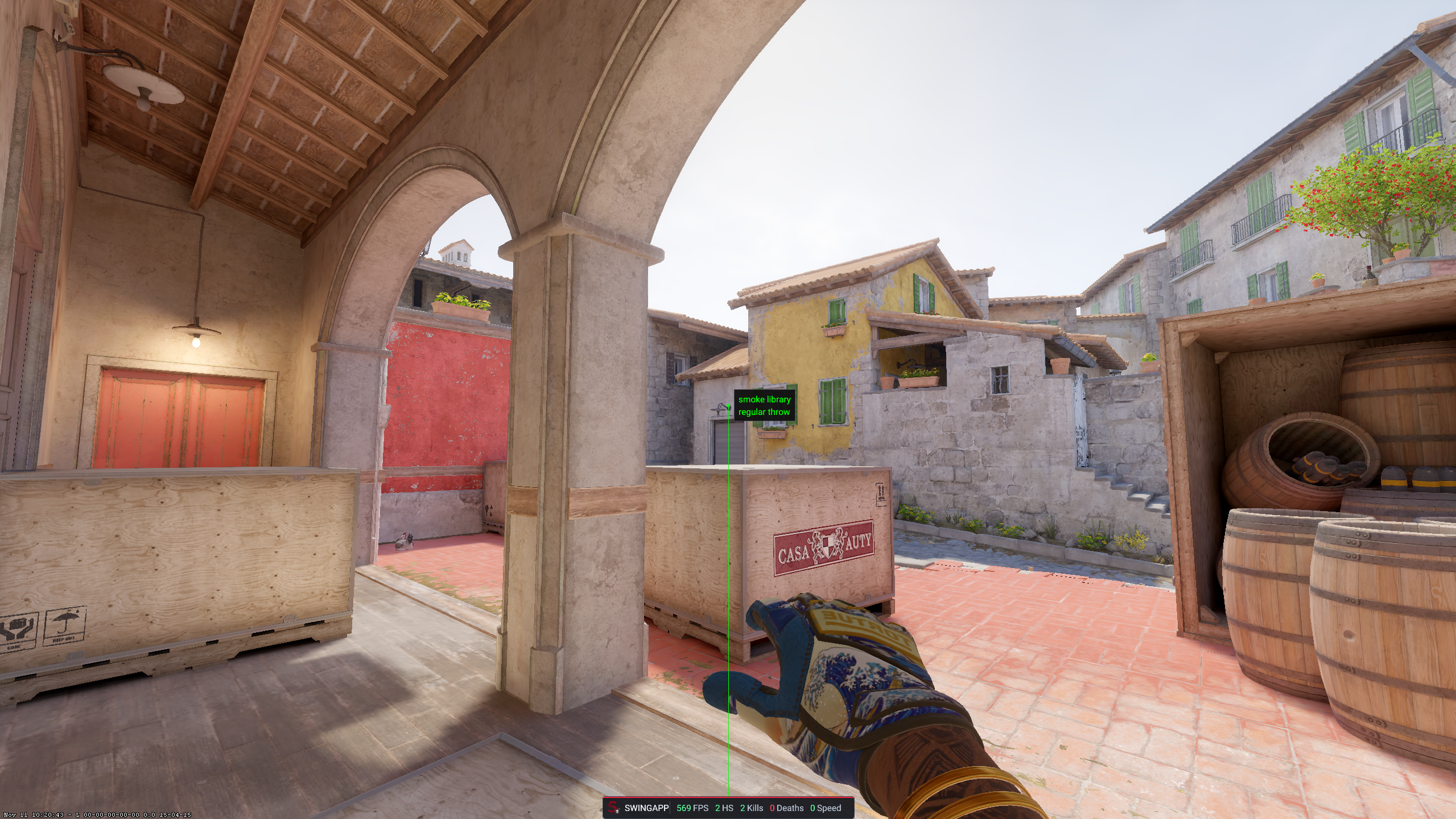
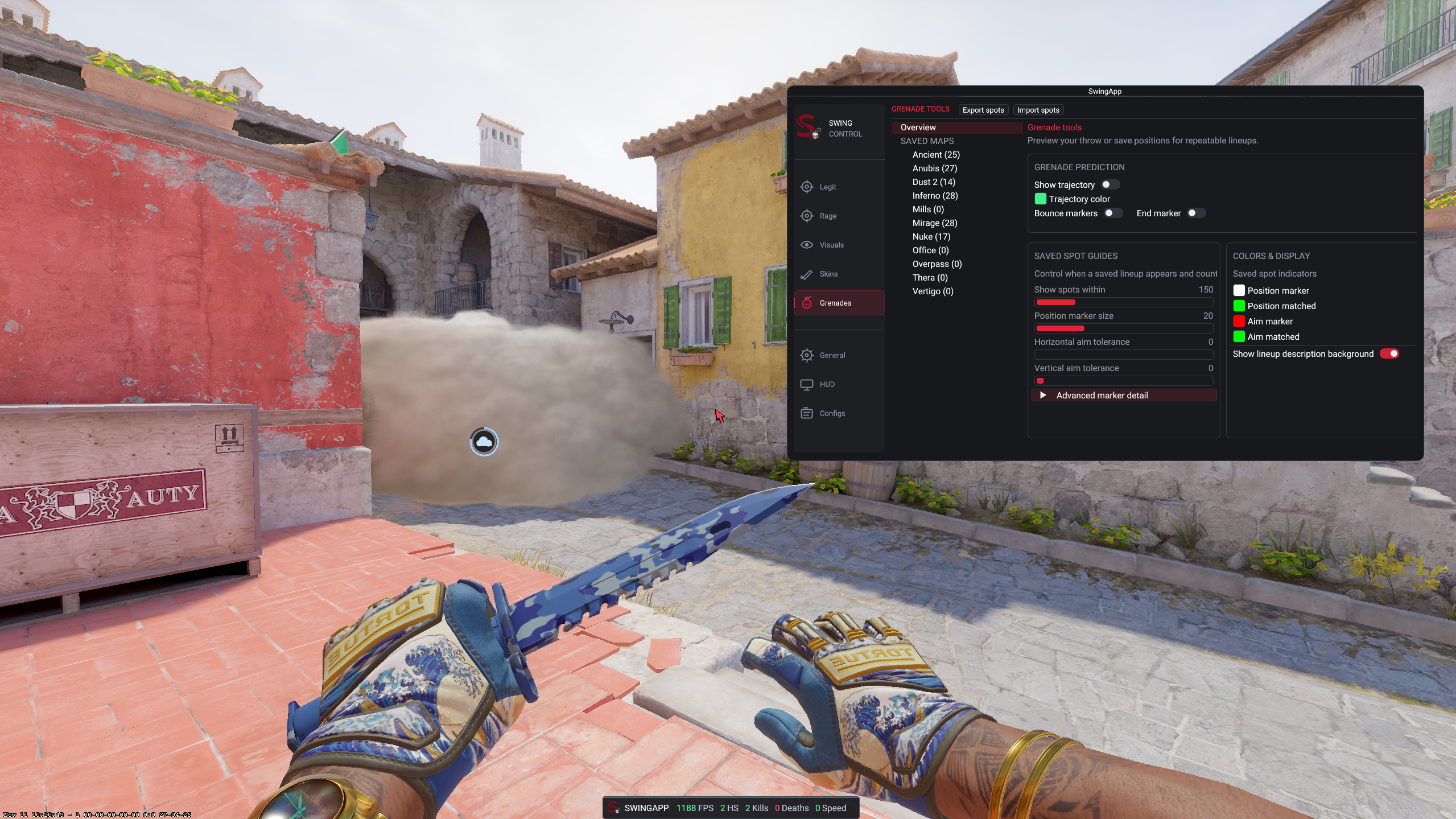
See an estimated path for the grenade before release.
Mark estimated bounces and the predicted landing point.
Browse saved positions by map and follow on-screen position and aim markers.
Move your saved lineup collection between setups.
Display a countdown for active smoke and fire effects.
05 / GENERAL
The General page puts app controls, movement options, round information and feedback in one place.
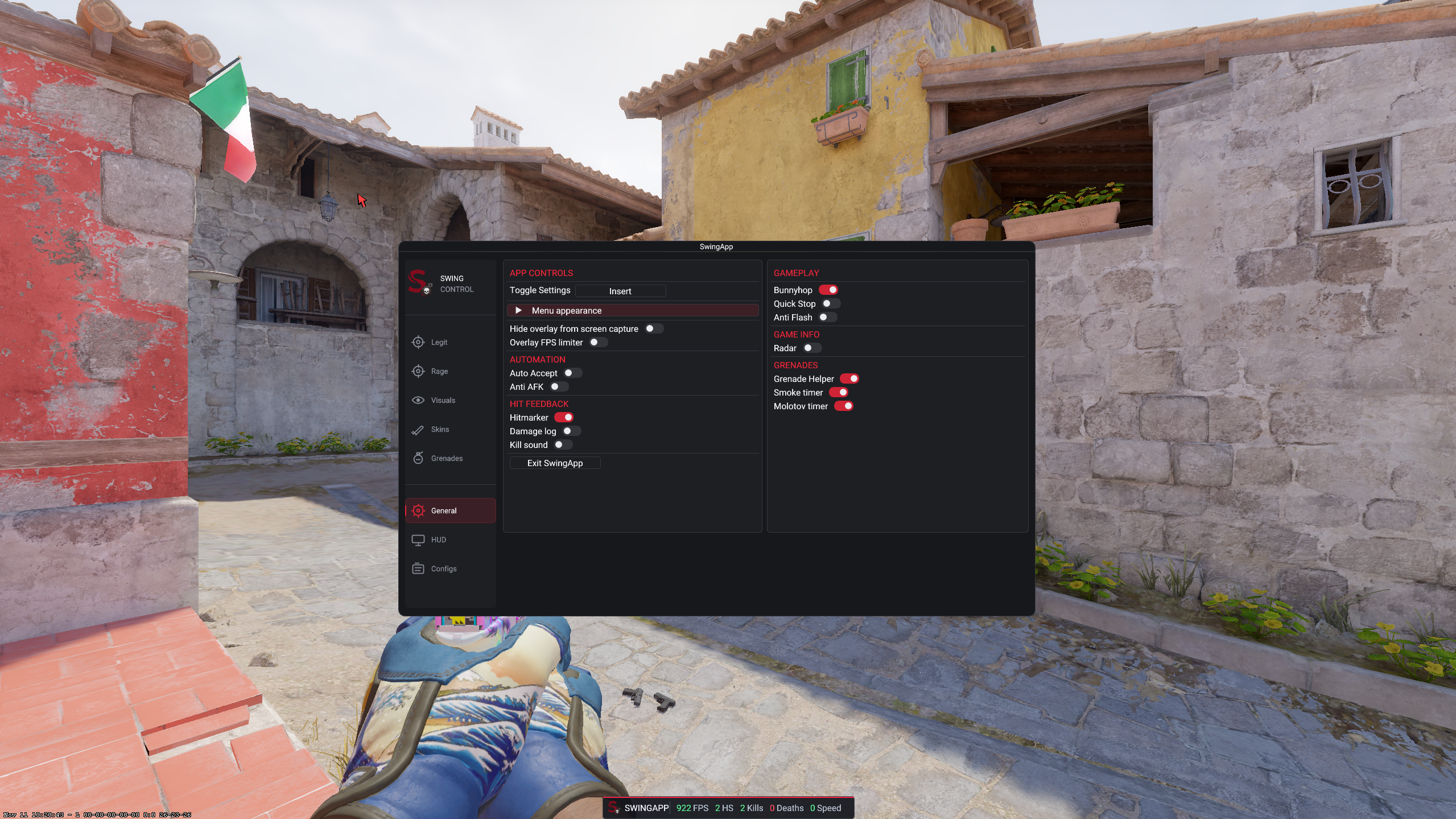
Choose the menu key and appearance, hide the overlay from screen capture or limit its frame rate.
Enable jump assistance or use Quick Stop to counter movement with the chosen key.
Adjust flash visibility and enable the game-information radar option.
Use grenade guidance and timers for active smoke and molotov effects.
Enable hitmarker, damage log or a sound for eliminations.
Auto Accept and Anti AFK are available as optional session controls.
06 / HUD & MUSIC
Move the status tile and music panel around the screen. Choose a crosshair, customize the music panel and control playback without leaving the match.
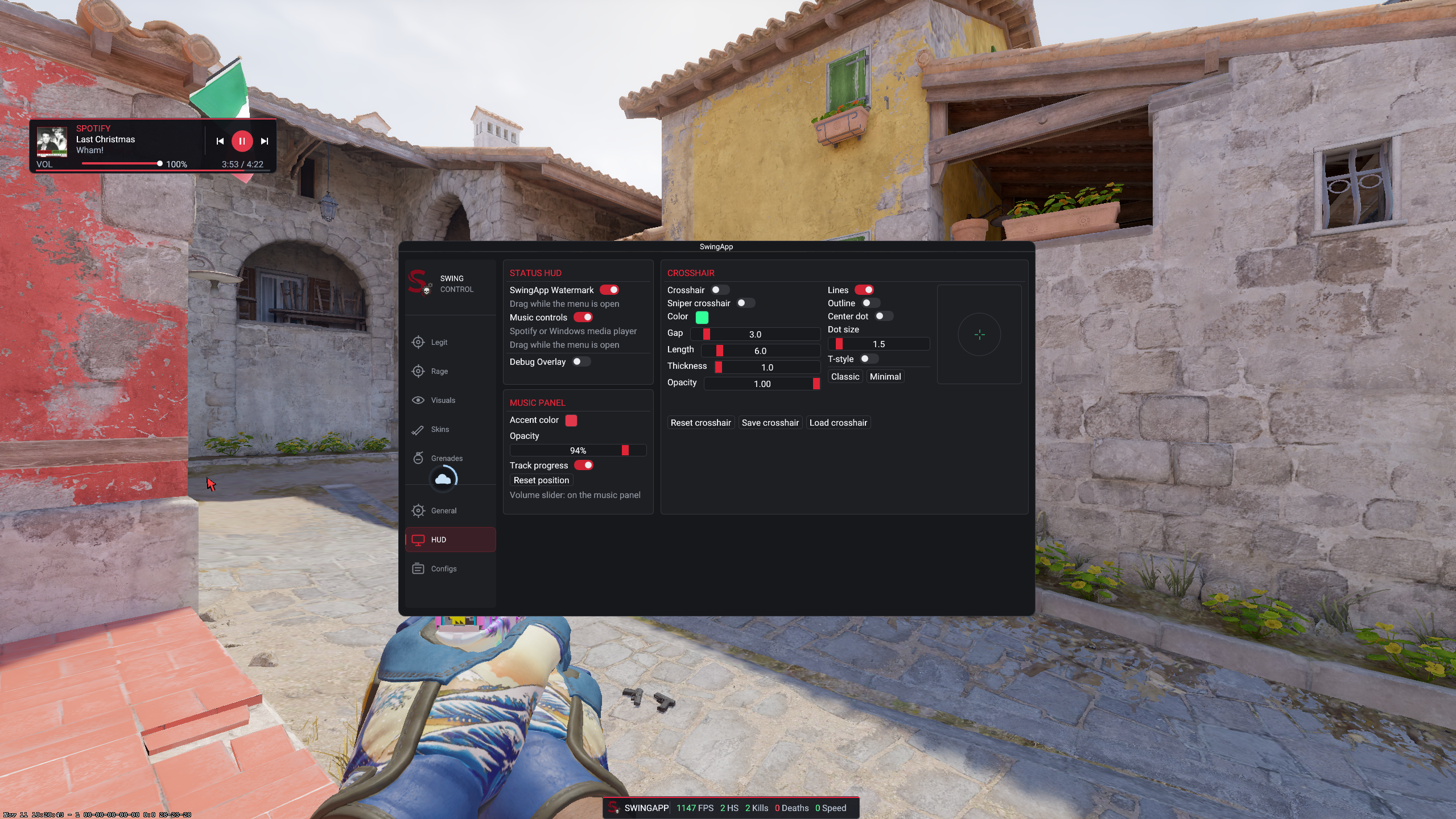
Show the SwingApp mark, FPS, headshots, kills, deaths and speed in a movable tile.
Show the current song and artwork with play, pause and skip controls.
Adjust playback volume, accent color, panel opacity and track progress display.
Set color, gap, length, thickness, dot, outline and opacity, with a live preview.
Enable a separate sniper crosshair option.
07 / CLOUD CONFIGS
Save named configurations and return to them from My Configs. The screen also includes a Config Browser for shared setups.
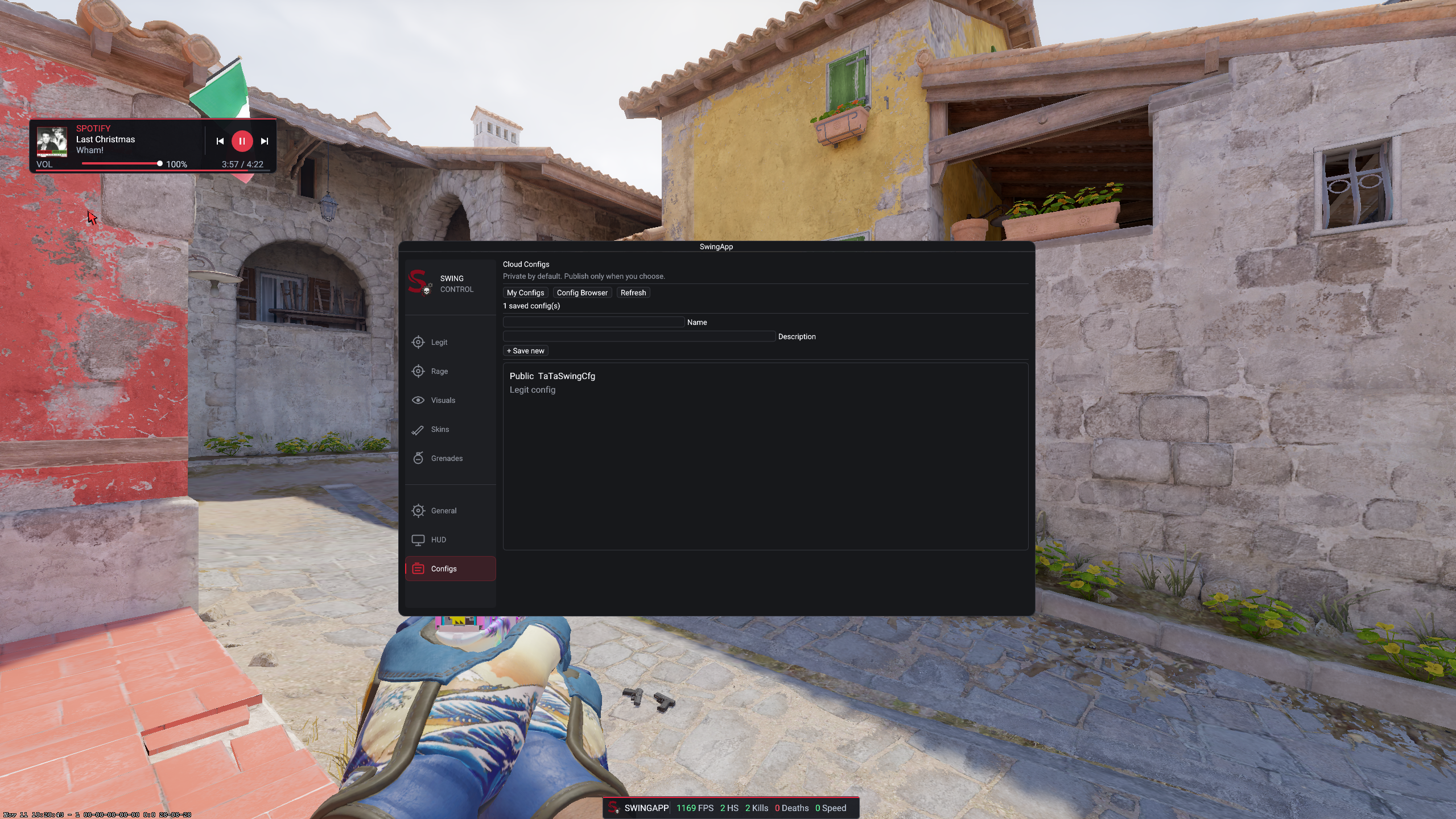
Save a named setup with a description and find it in your list.
Browse configurations made available by their owners.
Configurations are private by default; choose when to publish one.
SWINGAPP / V5
These screenshots show the current interface and selected in-game results. Available options and visual results can vary with your setup and game updates.
View versions ↗